Adobe Workfront proofing: review that produces a record instead of an argument
Adobe Workfront proofing: review that produces a record instead of an argument
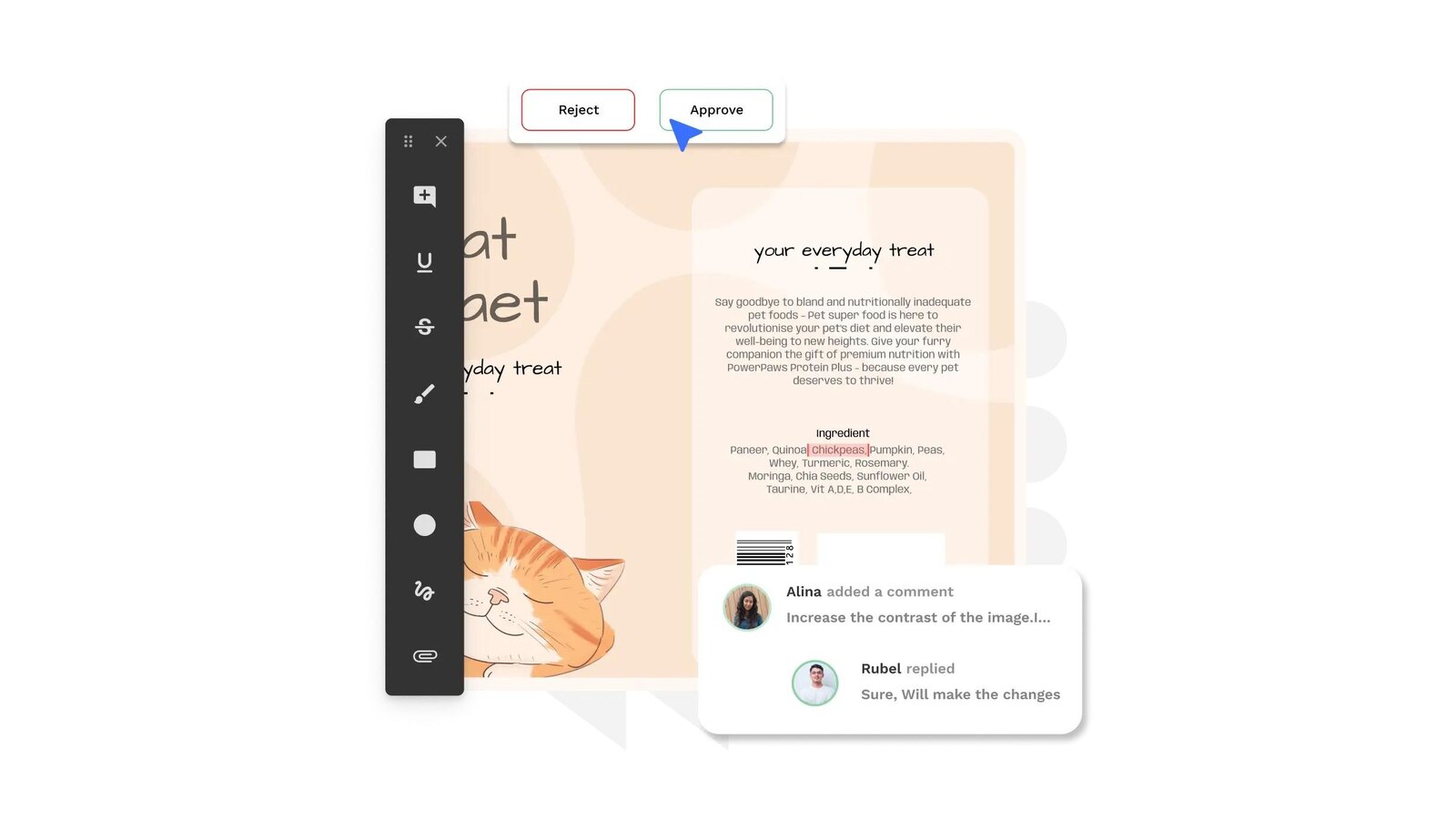
Creative review is where schedules quietly go to die. A file goes out as an attachment, four people reply with contradictory notes, and the version that ships is the one whose filename looked final. Nobody lied and nobody was careless — there was simply no record of who was asked and what they decided.
Adobe Workfront treats review as a structured object rather than a conversation. Feedback lands on the file, the order in which people see it is designed rather than improvised, and a decision is a recorded event with a name and an owner — the difference between an approval and a feeling of consensus.
Table of contents
- What is proofing in Adobe Workfront?
- What actually moves a proof from stage to stage
- Proof decisions and document approvals are not the same thing
- Where review meets your asset library
- What to plan for: plans, licenses and decision limits
- Conclusion: why a review record is worth designing
What is proofing in Adobe Workfront?
A proof is the file put under review in the proofing viewer, which Adobe describes as containing tools for marking content and making comments. Around it sits an optional Automated Workflow: Adobe describes it as a series of sequential or parallel review stages, with dependencies between them and visibility limited to certain users, that moves the proof through them automatically and notifies the reviewers along the way.
A stage is the working unit. Adobe defines proof stages as segments of time in which different users review a proof, and every hand-off notifies the reviewers due next. Stages run consecutively or simultaneously, and one can be set to activate only after a previous stage completes — which is how "legal sees it only after brand signs off" stops being a convention somebody must remember.
One caution: Workfront Proof is a separate standalone product, and its documentation carries a notice saying so and pointing readers to proofing inside Adobe Workfront. The two share vocabulary, so a capability read from the wrong section is easy to promise and awkward to retract.
What actually moves a proof from stage to stage
A stage starts on a documented condition, not because someone remembered to. Adobe lists them: on proof creation, when the previous stage deadline passes, on a specific date and time, when all decisions on the parent stage are Approved, when they are Approved or Approved with changes, or when all decisions are simply made. Manual activation is also available. Locking is the mirror image: manually, when the next stage starts, when all decisions on the stage are made — or never.
Two mutually exclusive settings decide how much agreement a stage needs. A primary decision maker can be appointed, and Adobe is blunt about the effect: that person’s decision renders all other decisions for the stage unnecessary. Or the stage can require only one decision, completing once any one recipient decides. A private stage narrows visibility instead of authority: only supervisors, Workfront administrators and Workfront Proof administrators see its comments and decisions — the mechanism an agency uses to review internally before the client sees markup.
Then the decisions themselves, and not all of them advance anything. Approved means the proof is ready to move to the next stage. Approved with changes means changes are needed but you do not need to see the revision first. Changes required means the opposite: you need another revision before it moves. Not relevant means the proof is not yours to decide. Two of the four push the workflow forward and one holds it, which is why renaming decisions is a governance act rather than a labeling exercise. Adobe allows exactly that, with the scope stated plainly: "On Select and Premium plans, the Workfront administrator or Workfront Proof administrator can rename, reorder, and hide decisions."
Proof decisions and document approvals are not the same thing
They feel like one feature and they are not. Adobe counts three separate families of decision toward the monthly limit: legacy document approvals use Approve, Approve with changes and Reject; unified approvals use Approve, Approve with changes and Needs work; proof approvals use Approve, Approve with changes and Changes required, and can carry custom labels.
The generations matter too. Adobe now documents unified review and approval, which brings Workfront and Adobe Frame.io together on Adobe cloud storage, and is blunt about the consequence: "Workfront Proofing functionality is not available with this integration," and "proofing is unavailable if your organization is on Adobe cloud storage." Separately, the updated document-approval workflow with a basic single-stage mode and an advanced mode for multi-stage approvals and parallel paths is scoped as functionality "only available for specific accounts." Which generation you are on decides what your reviewers see.
Where review meets your asset library
Review is half a content operation; the other half is where the approved file lives. Adobe documents that once an asset is linked from Experience Manager Assets Essentials, you can create a proof on it and assign reviewers — though not in the new Documents area, where organizations on Adobe cloud storage use the Frame.io viewer instead.
What the library then does with the file — metadata, processing, and the approval state that governs distribution — is on our AEM Assets / DAM page; the integration itself belongs to our Adobe Workfront page, which owns that topic.
What to plan for: plans, licenses and decision limits
Workfront states access per capability, and its tables routinely show two generations at once, so a requirement is read where the capability is documented, not inferred from a neighbor. Configuring proof settings for an organization requires "Current plan: Pro or Higher" or "Legacy plan: Premium or Select". Editing an Automated Workflow on an existing proof requires "Adobe Workfront package: Any" with a "Standard" or "Work or Plan" license — and a "Proof Permission Profile" of "Manager or higher".
The limit that surprises people is on decisions themselves. Proof and document decisions are limited for all non-paid Workfront licenses on the new plans, reset monthly per user, and the allowance depends on the plan: on Select three decisions, on Prime five, on Ultimate seven for External and Contributor licenses, while Light and Standard are unlimited. A Contributor who reaches the limit is automatically upgraded to a Light license with unlimited decisions, and the administrator is notified — a licensing consequence nobody decided to buy. That auto-upgrade can be switched off, after which a non-paid user over the allowance is simply not upgraded. Reviewer populations are a commercial design question, not just a permissions one.
Conclusion: why a review record is worth designing
Proofing changes a creative team’s week more than any other part of Workfront, for an unglamorous reason: it replaces recollection with a record. Who was asked, in what order, what they decided and what it let happen next are properties of the proof, not of somebody’s inbox.
That record exists only if the workflow was designed: stages that match how your organization signs off, activation conditions that reflect real dependencies, and a reviewer population that fits your licenses. Softwhale designs those before configuring anything; our Adobe Workfront page describes how we work. Designing the approval model and the reviewer population is usually 3–4 weeks of work before anything is configured.
Unlock the power of Adobe Solution with Softwhale.
Unlock the power of Adobe Solution with Softwhale.
Explore how Softwhale’s expert Adobe solutions can help you build scalable and personalized digital experiences. Dive deeper into insights and best practices tailored specifically to your industry. Stay informed with our latest blog posts on Adobe trends, strategies, and innovations.